
How Can We Help?
Lost Connection to Arago
After establishing a connection, Arago maintains continuous communication with Arago Control to transmit whereabouts data, system health and to check the live network connection is healthy. This is essential to ensure optimal conditions for locomotion and safety operations.
When the connection does not pass the required health checks, Arago disconnects and the following message is displayed:
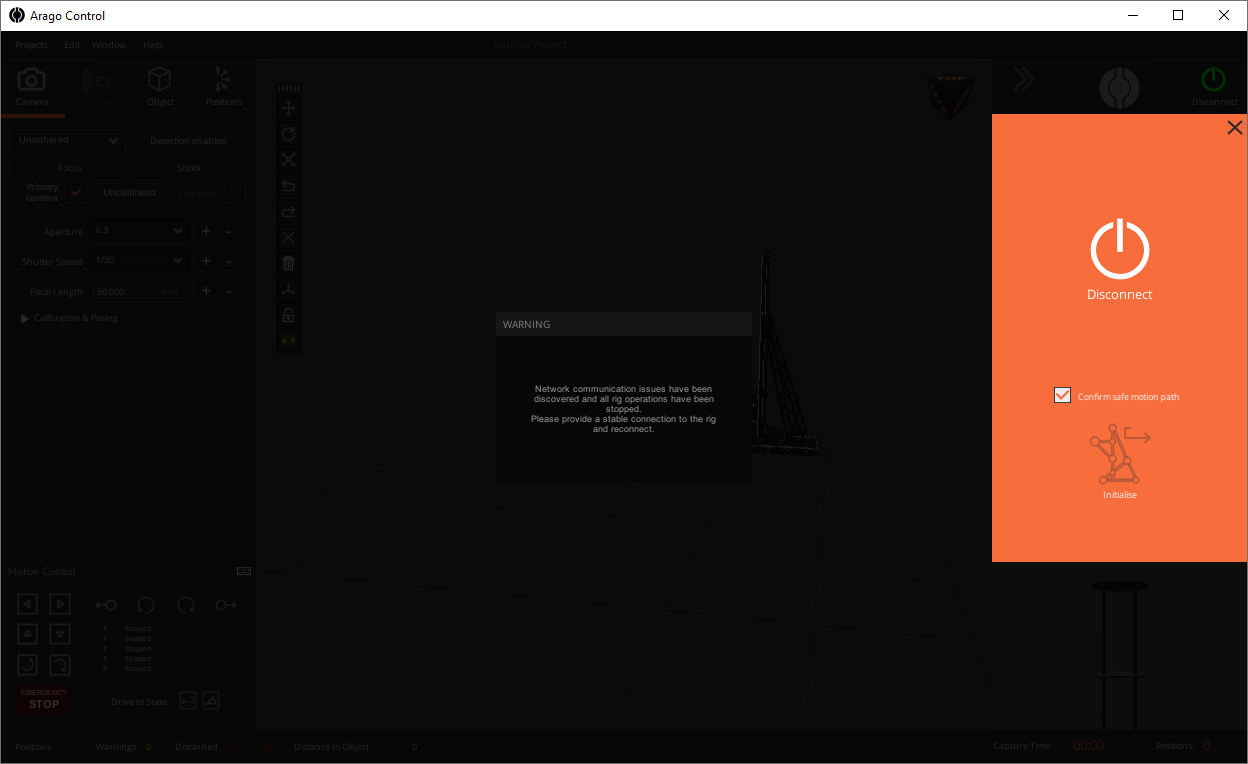
In this situation, you can check the following:
- Check the health of your network configuration. We strongly advise to have a direct ethernet cable connected from Arago to PC. If your PC has only one LAN port already used for internet access, we advise to acquire a separate Network Card for connecting Arago. We highly endorse this configuration.
- If Arago is connected to a network and the PC is accessing Arago via the network, you will need to check your LAN networking configuration for any faulty or slow component (router, switch, cabling in between or any other equipment involved).
- Ensure that there is no software installed on the used PC that could jeopardise your network connection.
Sometimes the OS wrongfully calculates the routing to Arago. To ensure this doesn’t happen follow these steps:
- In the Windows Search/Run command open Network Connections by typing ncpa.cpl and enter
- Right-click the static Ethernet adapter where Arago connects → Properties
- Select Internet Protocol Version 4 (TCP/IPv4) → Properties
- Click Advanced
- Uncheck “Automatic metric”
- Set the metric to 1 (lowest = highest priority)
- Do the same for Wi-Fi or other ethernet connections present there but set them to 10 or higher (giving them lower priority)