I Cannot Connect to LightArray

You are here:

Problem Description

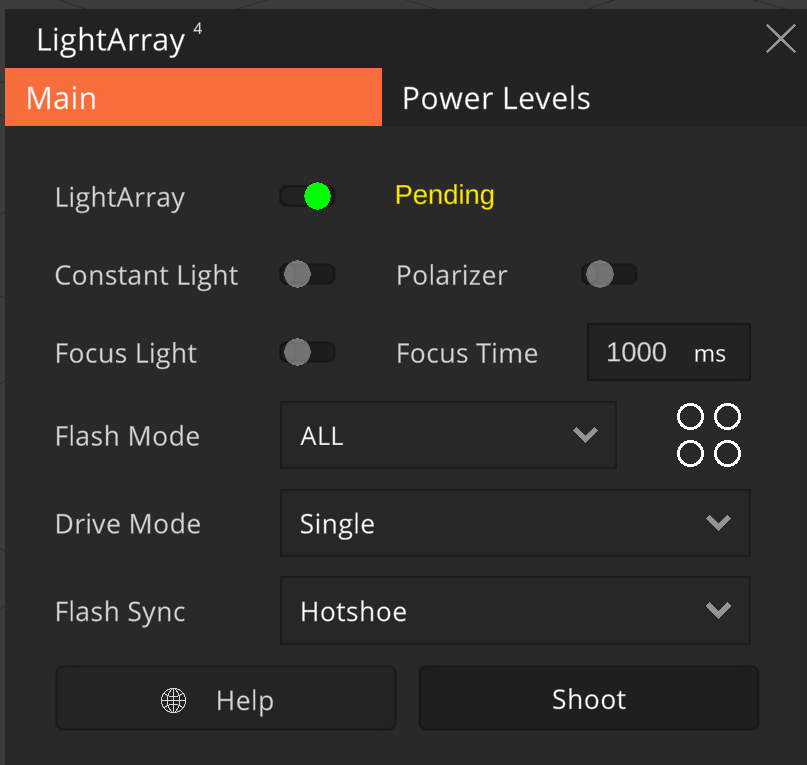
Arago Control is unable to connect to the LightArray, even though the LightArray is powered on and connected to the same network as the computer.

LightArray4 connection pending

Possible Cause

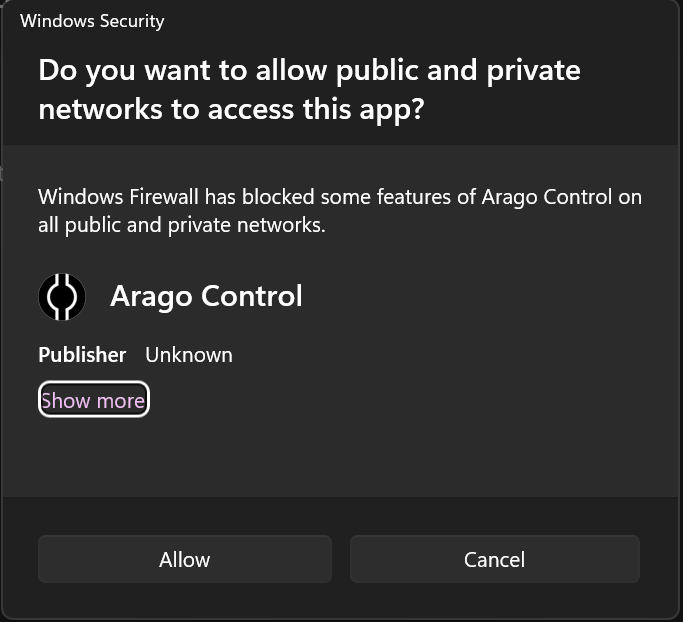
In some cases, Windows Defender Firewall blocks the network communication required by Arago Control to communicate with the LightArray. This can happen if the application was denied network access when it was first launched or if a firewall rule was added later.

Consent popup to allow Arago Control to access the network

How To Fix It

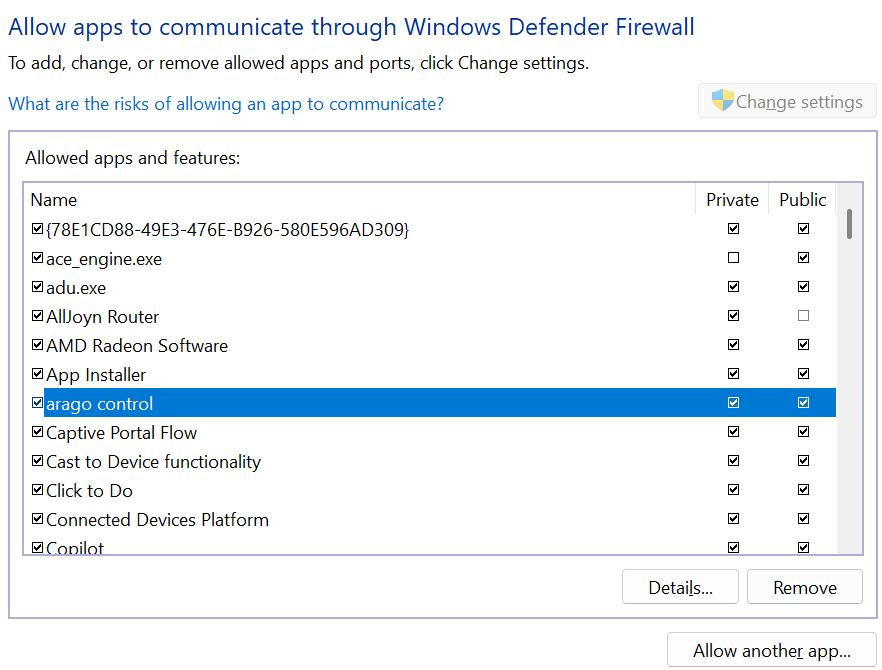
I. Verify that Arago Control is allowed through Windows Defender Firewall.

  1. Open Windows Defender Firewall.
  2. Click Allow an app or feature through Windows Defender Firewall.
  3. Select Change settings.
  4. Locate Arago Control in the list.
  5. Ensure that it is allowed on the appropriate network profile (typically Private).

II. Check for blocking inbound firewall rules

  1. Open Windows Defender Firewall with Advanced Security.
  2. Select Inbound Rules.
  3. Look for any rules related to Arago Control.
  4. If you find a rule that explicitly blocks the application change it. Double click and choose Allow the connection under Action.
  5. If no blocking rule exists, no action is required.
Arago Control blocked on TCP and UDP
Correct inbound rules for Arago Control

III. Restart Arago Control


After updating the firewall settings, close and reopen Arago Control and attempt to connect to the LightArray again.


If The Issue Still Persists

If the issue persists after completing the steps above, perform the following checks:

  • Verify that the computer and the LightArray are connected to the same network.
  • Temporarily disable any third-party antivirus or firewall software to determine whether it is blocking the connection
  • If the problem still persists after completing all of the troubleshooting steps above, contact Rigsters for further assistance.

Table of Contents